Draft a shipping update
Start with a small practice task, then use your own page.
1. Open the source
Section titled “1. Open the source”Open the practice page. All data is fictional and contains no real customer information.
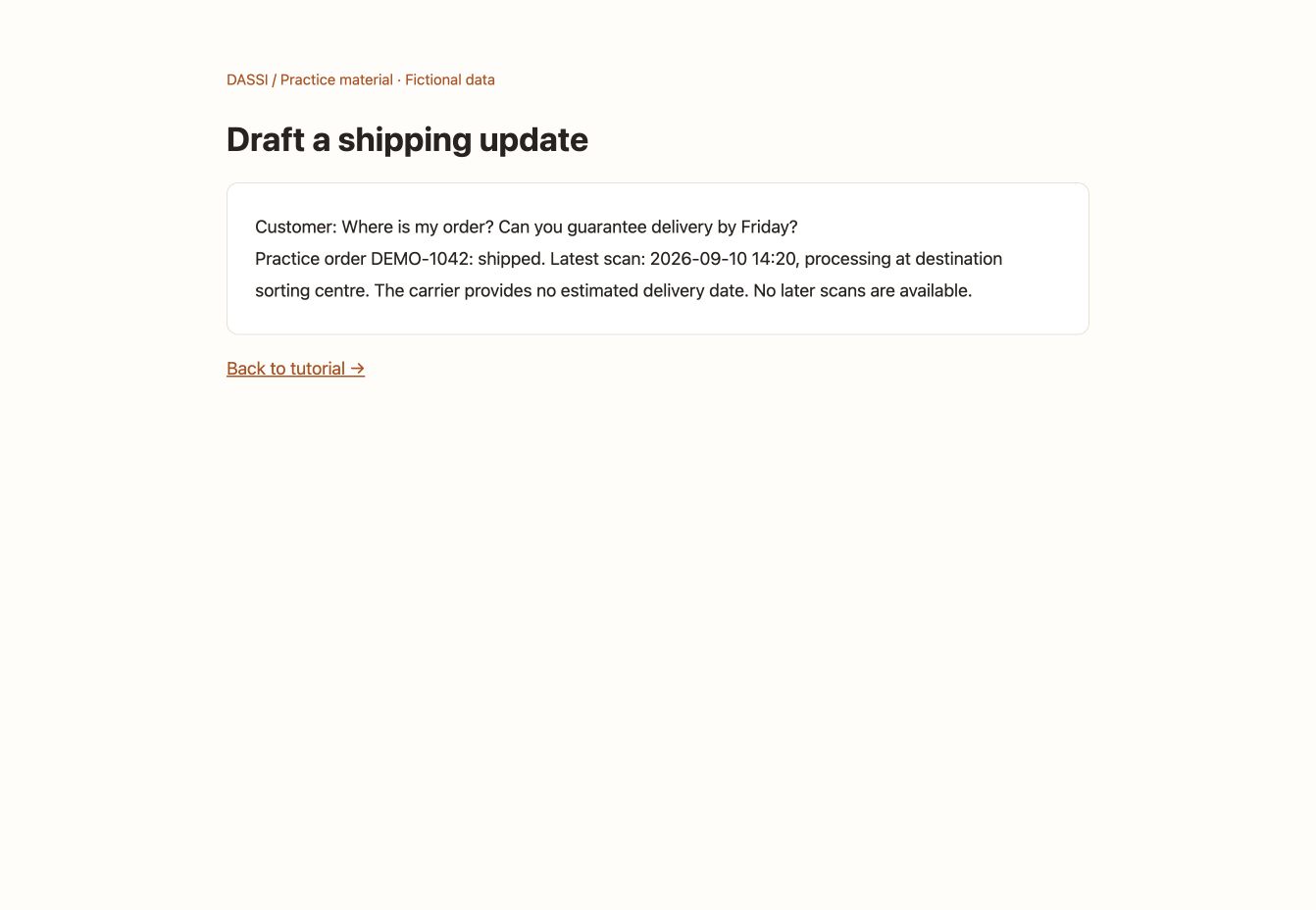
This screenshot shows the task input, not a Dassi execution result.
New to Dassi? Follow the installation guide, open the sidebar and sign in. If prompted for credits or model configuration, follow AI Models & Providers.
2. Copy this prompt
Section titled “2. Copy this prompt”Keep the practice page active. Paste this into the Dassi sidebar and send it.
Read only this practice order and tracking record. Draft a concise English customer reply, followed by a Chinese version. Include the date and status of the latest scan and explain that no ETA is available. Do not guarantee Friday delivery, infer a lost parcel, or invent a carrier investigation. Suggest one next step for a person to verify. Display a draft only; do not send or modify the order.3. Review the result
Section titled “3. Review the result”Check the scan date and status. A historical scan is not a live location or a delivery guarantee.
If the page cannot be read, ask Dassi to identify missing information before supplying it. Do not ask it to guess.
4. Use your own page
Section titled “4. Use your own page”Open a relevant business page you are authorized to process. Adapt the product, quantity or language in the prompt. Review the draft or table before proceeding. This use case does not configure background auto-replies or send customer messages automatically.