Use Dassi with Ollama
Dassi can run on a model you host yourself. If you already use Ollama, you can point Dassi at http://localhost:11434 and it will use your local model as the reasoning engine instead of Dassi’s managed credits — no cloud provider, no per-token bill, and no page content leaving your computer.
The setting is real but it’s buried: it lives behind a collapsed section on the Models page, at the bottom of a long list of providers. This guide shows you exactly where to click.
On pricing: running your own model puts you on Developer — $10 a month, or $36 for a full year, which works out to about 10¢ a day. You supply the keys, so you’re only paying for the extension, and it costs less than any managed-credit tier. The option is hidden until you’ve connected a provider, so don’t go looking for it first: see Unlock the Developer plan below, or Plans & Billing for the full comparison.
Why you’d use it
Section titled “Why you’d use it”localhost, not to a model vendor.The tradeoff is capability. Browser automation is a demanding, long-horizon, tool-calling workload — a 7B model will feel noticeably less reliable than a frontier model at multi-step tasks.
Before you start
Section titled “Before you start”You also need Dassi installed in Chrome.
1. Open Dassi’s settings
Section titled “1. Open Dassi’s settings”There’s no gear icon in the panel toolbar. Settings is behind the ⋮ menu.
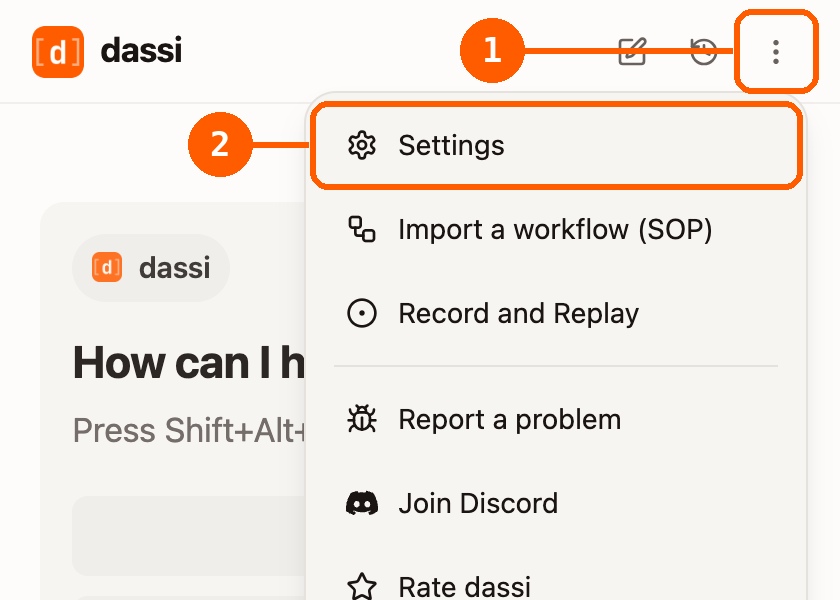
- Click ⋮ in the top-right of the Dassi side panel.
- Click Settings. Dassi opens its settings page in a new tab.
2. Go to Models, then expand API keys
Section titled “2. Go to Models, then expand API keys”This is the step people miss — API keys is collapsed by default, so the provider list isn’t visible until you click it.
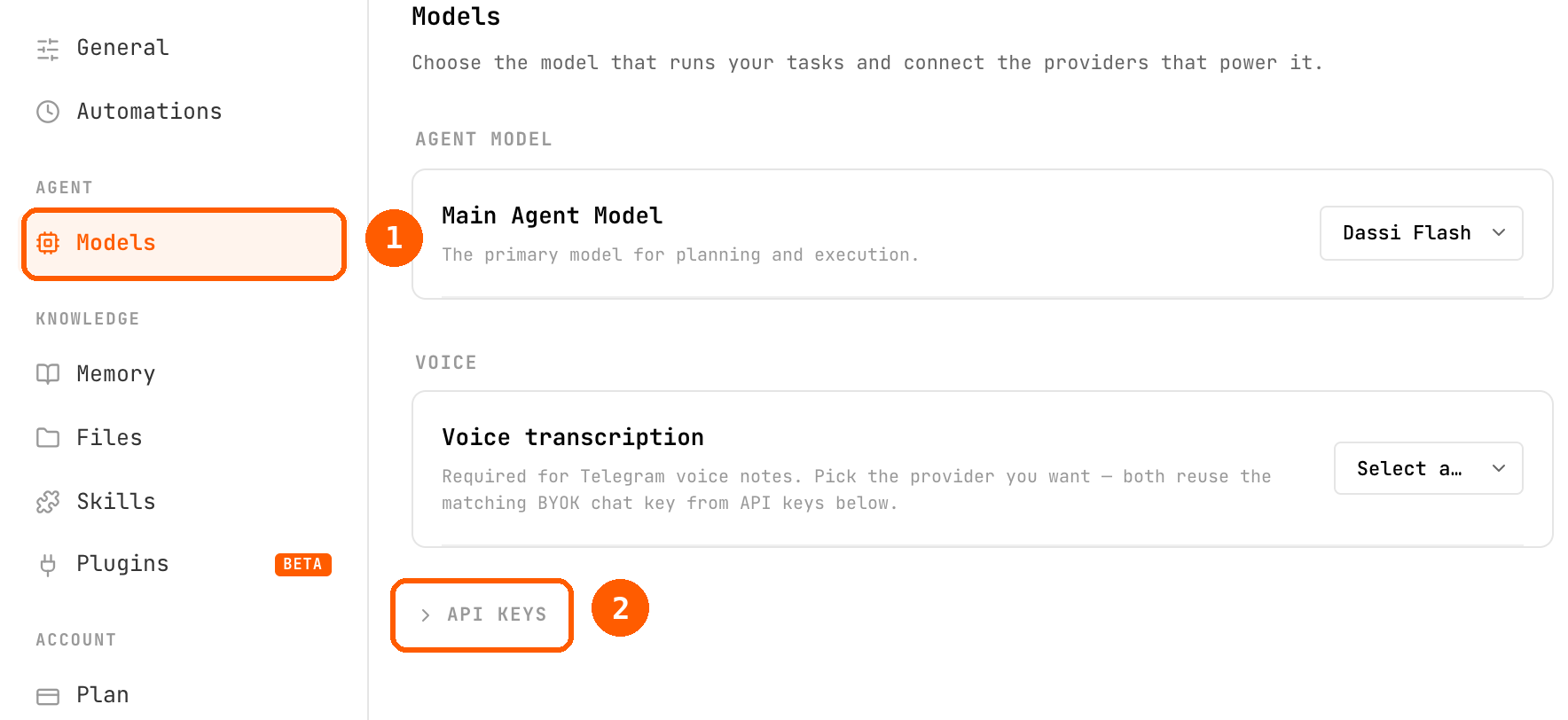
- Click Models in the left nav, under Agent.
- Click API KEYS to expand the section. A long list of providers appears.
3. Find the Custom endpoint card
Section titled “3. Find the Custom endpoint card”Scroll to the very bottom of that provider list, past Azure OpenAI.
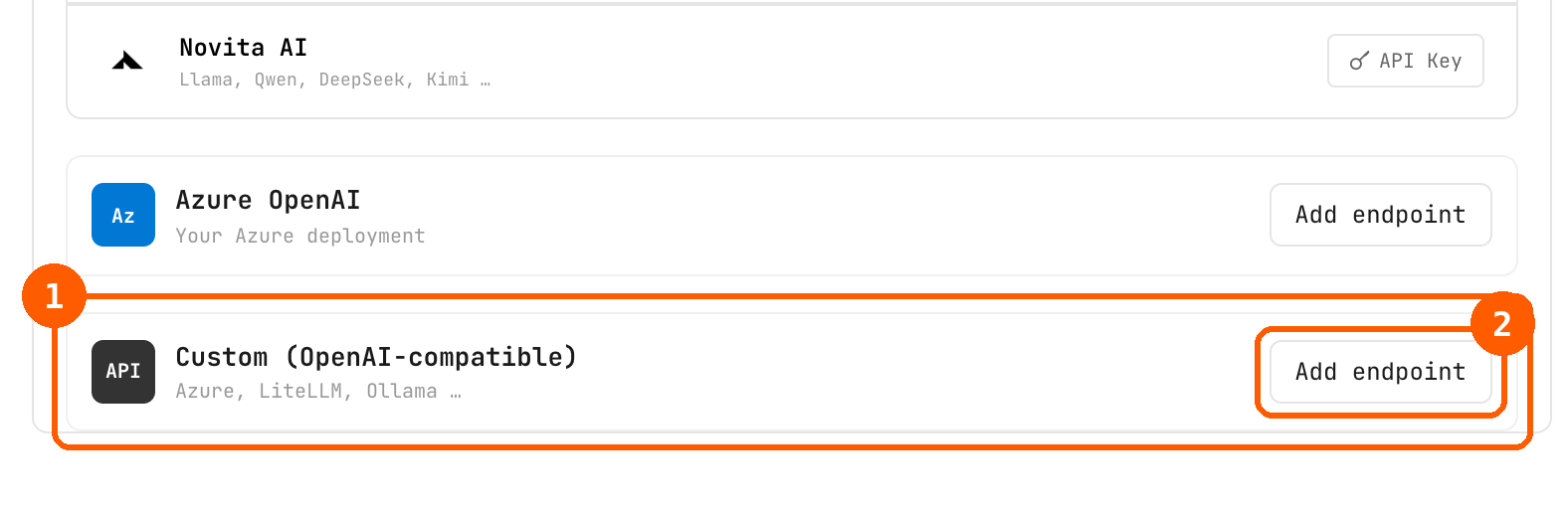
- The Custom (OpenAI-compatible) card — its subtitle reads “Azure, LiteLLM, Ollama …”. This is the one you want, not Azure OpenAI directly above it.
- Click Add endpoint to open the form.
4. Fill in the form
Section titled “4. Fill in the form”Three fields appear. Only the first one needs anything typed into it:
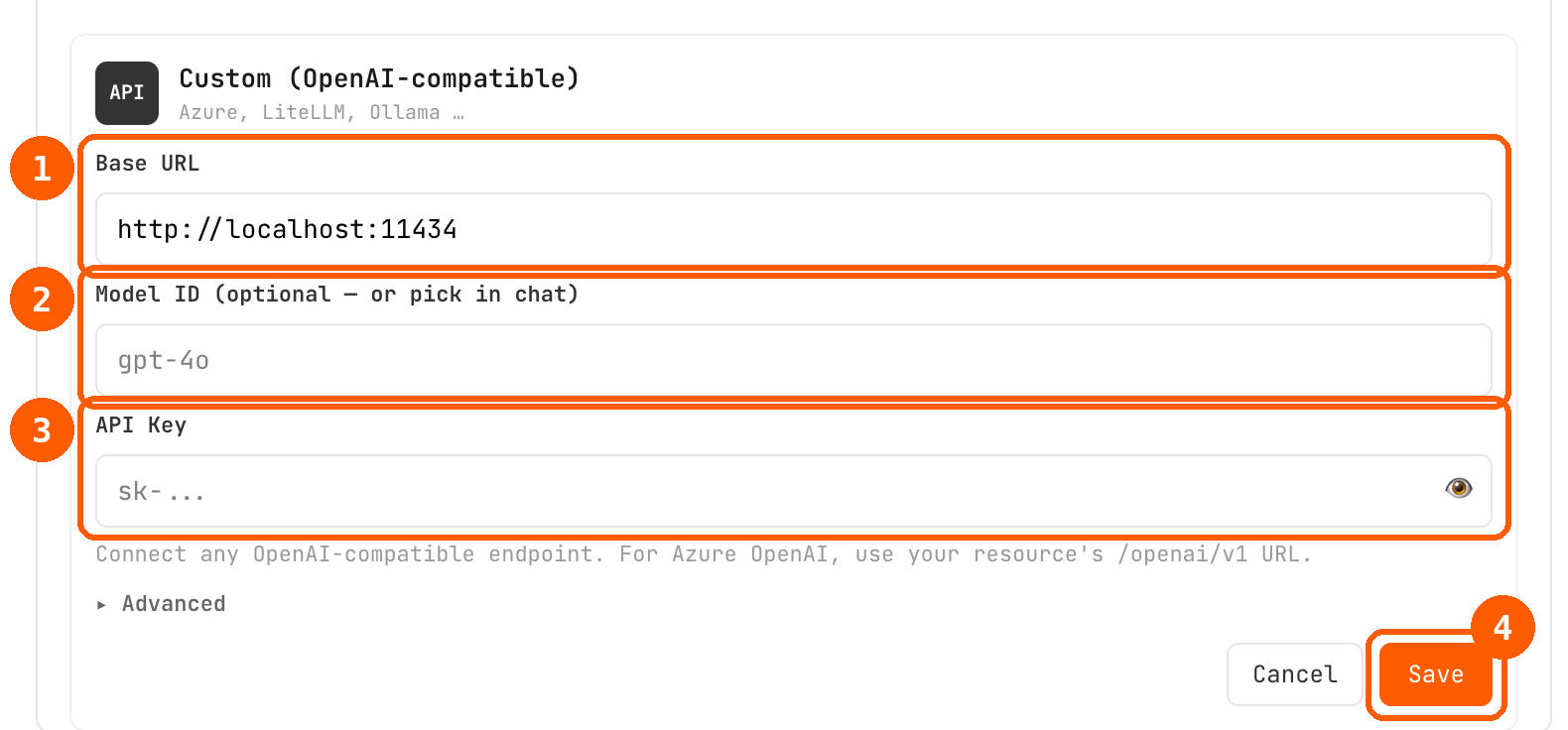
- Base URL — enter
http://localhost:11434. Include the scheme: a barelocalhost:11434is rejected as an invalid URL. Dassi normalizes the URL to end in/v1, sohttp://localhost:11434andhttp://localhost:11434/v1are equivalent. - Model ID — leave it blank. Dassi reads the model list from your server and lets you pick in chat. (If you’d rather pin one, enter the exact tag from
ollama list, e.g.qwen3:8b.gpt-4ois only the placeholder text.) - API Key — leave it blank. Ollama needs no auth, and the key is optional for a custom endpoint. Ignore the
sk-...placeholder. - Click Save.
Chrome will ask for permission to access http://localhost — approve it. Dassi then calls http://localhost:11434/v1/models to verify the connection, and the card shows as verified.
5. Pick your model and run a task
Section titled “5. Pick your model and run a task”Open the model picker at the bottom of the chat window. Every model you’ve pulled that Dassi supports is listed there — switch to the one you want.
Then try something small first, to confirm the loop works end to end:
Summarize this page in three bullet points.
If that works, move up to a real task:
Find the pricing page on this site and tell me what the cheapest paid plan includes.
Unlock the Developer plan
Section titled “Unlock the Developer plan”A local model means you don’t need managed credits, so the Starter / Pro / Max tiers aren’t what you want. Developer (“Dassi for developers”) is the track built for this: you supply the keys, and it costs less than any of the managed tiers because you’re only paying for the extension.
It’s hidden until you’ve connected a provider. If you go looking for it before finishing step 4, it isn’t on the Plan page at all — which is why it’s easy to miss that this cheaper option exists.
Once your Ollama endpoint verifies, open Settings → Plan. The Developer option appears below the Starter / Pro / Max cards, set apart rather than sitting in the grid — it’s a different kind of plan, not another credit tier.
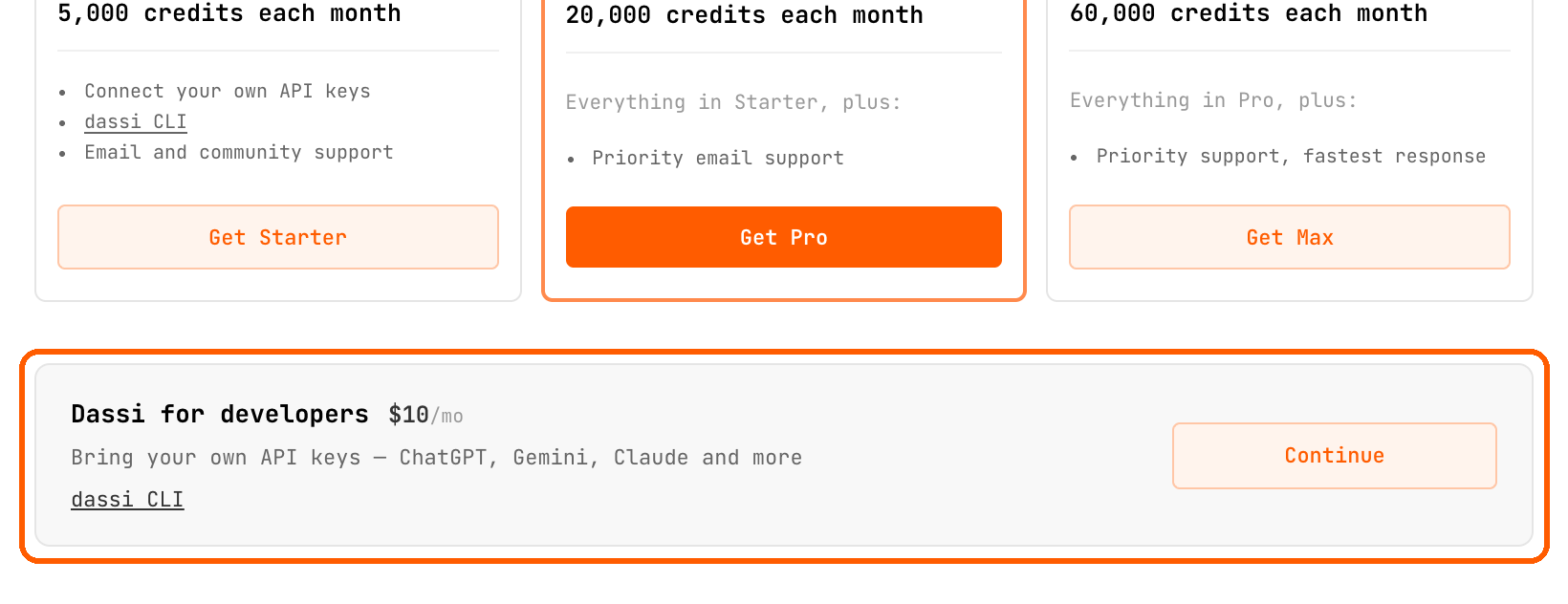
Checkout is by card. Where managed-credit purchases are paused for your region, a WeChat Pay button appears next to it as well.
It also shows up if you already subscribe to it, or if managed-credit plans are unavailable in your region.
See Plans & Billing for what each plan includes.
If your model is slow
Section titled “If your model is slow”Local models on modest hardware can take a while to produce the first token, especially on the first request after a model loads. Dassi waits 600 seconds by default, which is also the maximum.
To check or change it, click Advanced in the same Custom endpoint form:
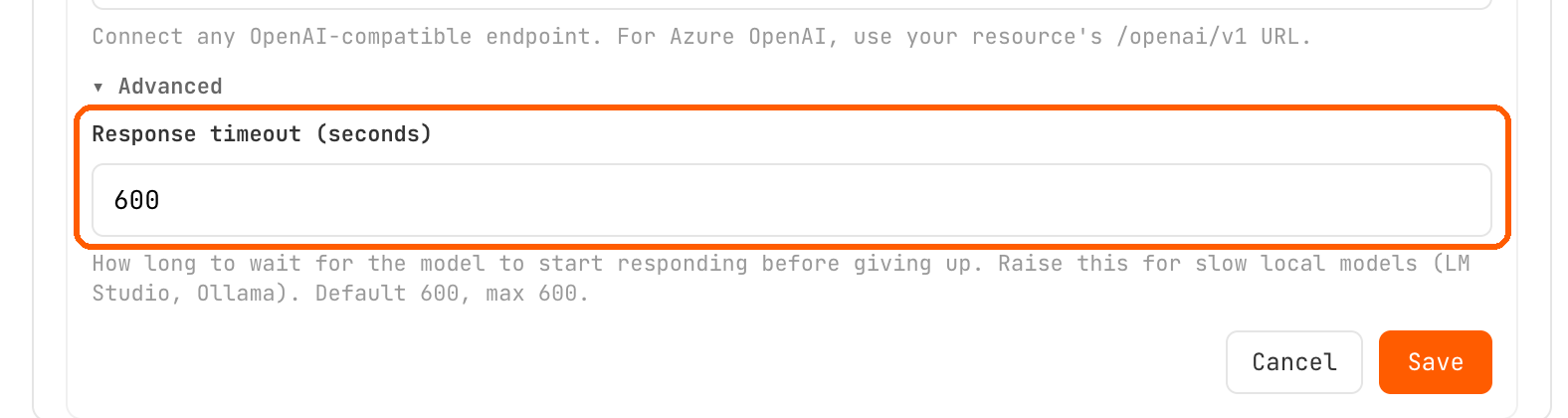
This is how long Dassi waits for the model to start responding before giving up. If you’re hitting that ceiling, the fix is on the Ollama side — see Set up Ollama for Dassi.
Dassi also works to hand your model less to chew on, which matters more on local hardware than anywhere else. It keeps the repeated part of a job byte-identical between runs, so Ollama can reuse what it already processed instead of starting over — that reuse is on by default, but only fires when the prefix matches. And it writes itself shortcuts for sites it has worked before, so a repeat run spends fewer turns reading pages. Both show up as less waiting. Why repeat runs cost less explains them.
Troubleshooting
Section titled “Troubleshooting”| What you see | What it means |
|---|---|
| ”Your local model blocked the request” after a task starts | OLLAMA_ORIGINS isn’t set, or doesn’t match your extension ID. The connection check passes without it — only the actual model call fails — so this shows up on your first task, not at setup. See Allow Dassi’s extension origin. |
| ”Enter a valid URL, including the scheme” | You typed localhost:11434. Use http://localhost:11434. |
| ”The endpoint could not be verified” | Ollama isn’t running, or isn’t on port 11434. Confirm with curl http://localhost:11434/v1/models. |
”Permission to http://localhost was denied” | Chrome’s host-permission prompt was dismissed. Click Save again and approve it. |
| Model isn’t in the chat picker | Its ID doesn’t match a supported family, or it wasn’t pulled. See Choosing a model. |
| Dassi replies but never clicks anything | The model doesn’t support tool calling. Switch to one that does. |
| Tasks time out before a reply | Raise Response timeout under Advanced, up to 600 seconds (600 is also the default). |
What stays local
Section titled “What stays local”With Ollama connected, the model calls — prompts, page content, and screenshots Dassi captures — go to your own server and nowhere else. Dassi still talks to its own backend for account and sync features unrelated to inference; see Privacy & Security for the full picture.
Related
Section titled “Related”- Set up Ollama for Dassi — the server side: pulling a model, allowing Dassi’s origin, running Ollama on another machine
- AI Models & Providers — every connection option, including managed credits and other OpenAI-compatible endpoints
- Your First Task — what to ask Dassi once it’s connected
- Why repeat runs cost less — how Dassi cuts the work a repeat run needs; on local hardware that lands as speed rather than savings