Install dassi on Edge
Open the store link in Edge, add the extension, then sign in to dassi. After that you can describe browser tasks in plain language.
The screenshots below are from a real install on macOS Edge on 12 September 2026. Button positions on Windows may differ slightly. Verified: extension install and opening the sidebar. Not verified in this run: signing in and executing a task inside Edge.
1. Open the official store page
Section titled “1. Open the official store page”In Microsoft Edge, open the dassi page on the Edge Add-ons store.
Look for the orange [d] icon and the publisher Omnify Labs LLC, then click Get. If it is already installed, the page shows management buttons instead.
2. Confirm the extension
Section titled “2. Confirm the extension”Read the permissions listed in the Edge dialog, then click Add extension. dassi needs to read pages and manage tabs to carry out browser tasks.
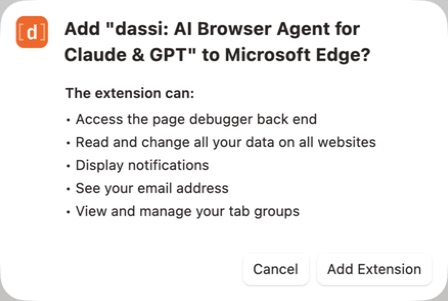
3. Open dassi
Section titled “3. Open dassi”After a successful install, a welcome page opens with an install-complete notice. Click Open Dassi and start to open the sidebar. You can also find dassi in the extensions menu on the Edge toolbar.
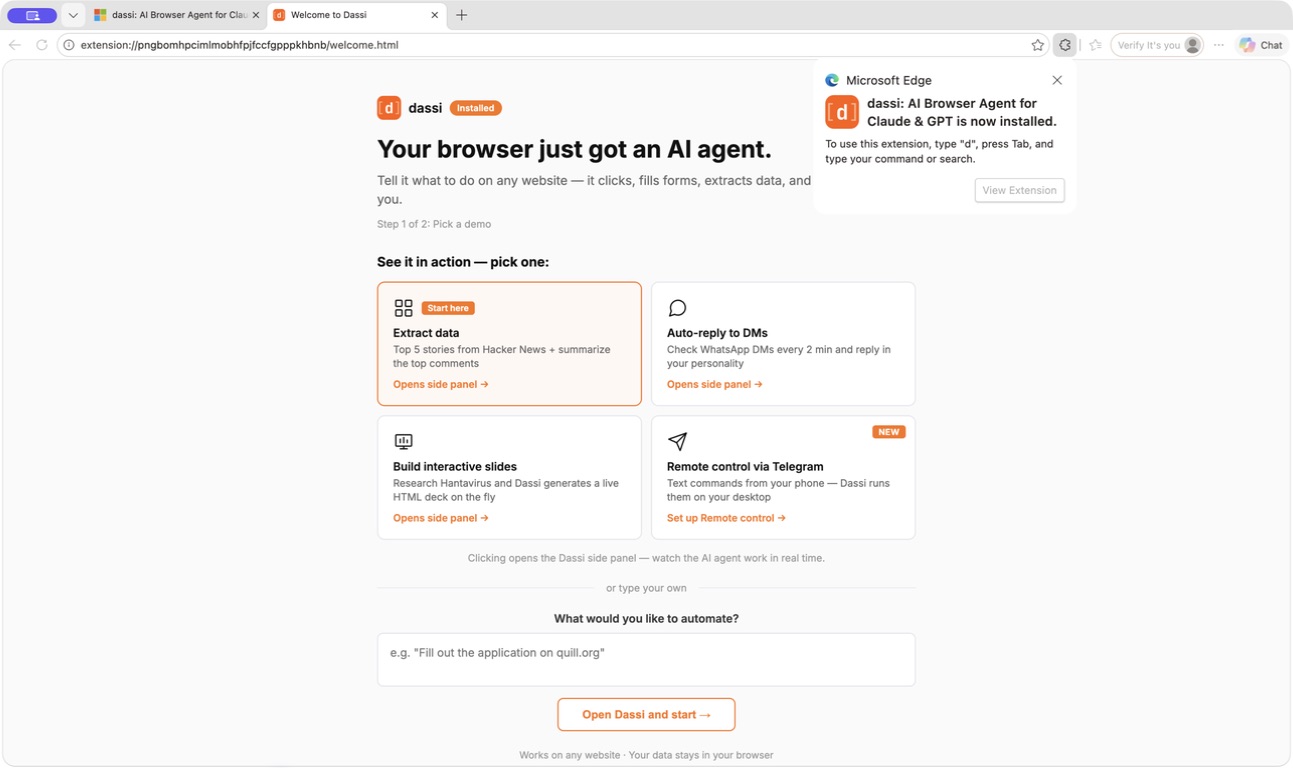
4. Sign in and run a first task
Section titled “4. Sign in and run a first task”The sidebar offers Sign in with Google and Sign in with email instead. Pick whichever works on your network and follow the prompts. Installing the extension and using a model are separate steps; credits and plans are whatever your account page shows.
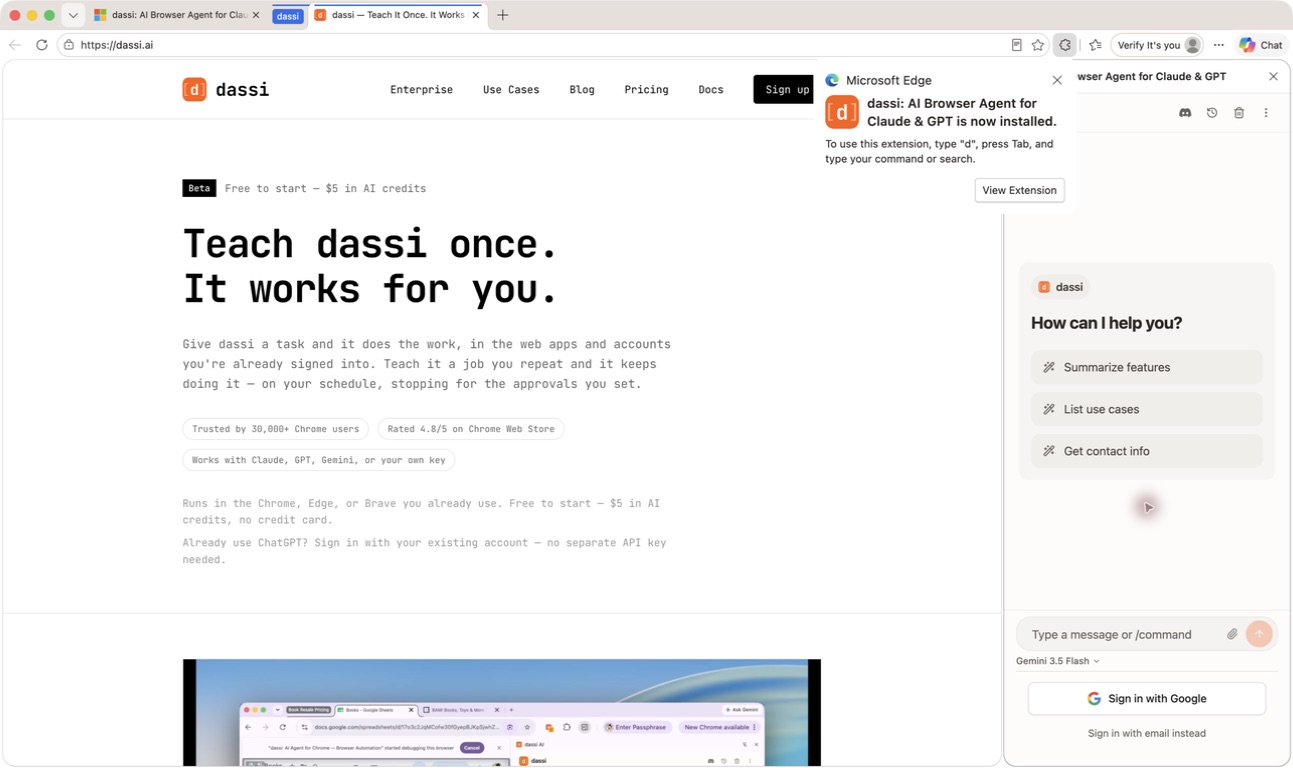
Open dassi on an ordinary web page and try a simple task:
Summarize the current page: title, main content and source link.Read only, do not change the page. Write "not found" for anything missing instead of guessing.Do not test page actions on browser settings pages or the extension store page. Start with a public page that loads normally.
Connection problems
Section titled “Connection problems”- Store page won’t open: make sure you are in Edge and that your network can reach the Microsoft add-ons store.
- Google sign-in won’t open: try the email sign-in option in the sidebar.
- Signed in but the model errors: separate network, credit and model-configuration problems by the actual error message. Switching browsers does not switch model providers.
- Using your own API key: see AI Models & Providers. API charges and dassi account benefits are governed by their own pages; adding a key does not make every feature free.