Set up Ollama for Dassi
Two things have to be true on your machine before Dassi can use Ollama: you need a model that supports tool calling, and Ollama has to accept requests coming from a Chrome extension.
Once both are done, follow Use Dassi with Ollama to point Dassi at the server.
1. Pull a model that supports tools
Section titled “1. Pull a model that supports tools”Dassi drives the browser through tool calls. A model without tool support will chat back at you instead of clicking anything, so pick one that has it — Ollama marks them on their model library pages.
ollama pull qwen3:8bLarger is meaningfully better here if your hardware allows it:
ollama pull qwen3:32b# orollama pull gpt-oss:20bCheck that it’s there:
ollama list2. Allow Dassi’s extension origin
Section titled “2. Allow Dassi’s extension origin”By default Ollama only accepts requests from a small set of local origins, and a Chrome extension is not one of them.
This one is worth getting right up front, because the failure is confusing: Dassi’s connection check runs in a context that bypasses the browser’s cross-origin rules, so the endpoint verifies fine. The actual model call doesn’t get that bypass. The result is a connection that looks healthy until your first task fails with “Your local model blocked the request.”
First, get your Dassi extension ID. Chrome hides extension IDs unless Developer mode is on — see Appendix: finding your extension ID if you don’t see one. For the Chrome Web Store build it’s bjcngahpcjeililljmfegmlanlpgibdi.
Then start Ollama with that origin allowed.
macOS / Linux:
OLLAMA_ORIGINS=chrome-extension://bjcngahpcjeililljmfegmlanlpgibdi ollama serveWindows (PowerShell):
$env:OLLAMA_ORIGINS="chrome-extension://bjcngahpcjeililljmfegmlanlpgibdi"ollama serveTo make it permanent on macOS, set it as a launch agent variable so the menu-bar app picks it up:
launchctl setenv OLLAMA_ORIGINS "chrome-extension://bjcngahpcjeililljmfegmlanlpgibdi"Then quit and reopen Ollama.
Choosing a model
Section titled “Choosing a model”Dassi accepts model IDs from a curated set of families. If your model ID doesn’t match one, the connection is blocked with a message listing what’s accepted.
Passing that check isn’t enough on its own, though — the model also has to support tool calling. These families are on Dassi’s list and ship tool-capable builds in Ollama:
| Family | Example Ollama tags |
|---|---|
| Qwen | qwen3:8b, qwen3:32b |
| Llama | llama3.1:8b, llama3.3:70b |
| GPT-OSS | gpt-oss:20b, gpt-oss:120b |
| DeepSeek | deepseek-r1:14b |
| Mistral | mistral, mixtral, devstral |
| Command-R | command-r7b |
| Nemotron | nemotron-mini |
Dassi will also accept Gemma (gemma3), Phi (phi4), and GLM (glm4), but Ollama’s builds of those don’t advertise tool support today — the endpoint connects and then the model talks back at you instead of clicking anything. Use them for non-browser work, not for tasks.
Tool support changes as Ollama updates its builds, so check the tools label on a model’s library page before committing to it.
Beyond the family, size matters more than anything else. Browser tasks involve long contexts (page content, screenshots, tool history) and many sequential decisions. Under about 7B, expect the model to lose the thread on multi-step work. If you have the VRAM, run something in the 20B–70B range.
Keeping a slow model responsive
Section titled “Keeping a slow model responsive”Dassi waits up to 600 seconds for the model to start responding, and that ceiling can’t be raised. If you’re hitting it, the fix is on the Ollama side:
- Keep the model loaded. Most of the wait on a first request is the model loading into VRAM.
OLLAMA_KEEP_ALIVE=30mkeeps it resident between tasks. - Use a smaller quantization. A Q4 build of a larger model often beats a Q8 build of a smaller one on both speed and quality.
- Drop a size class. A 8B model that answers in 5 seconds will get more done than a 70B model that times out.
Using a remote Ollama server
Section titled “Using a remote Ollama server”You don’t have to run Ollama on the same machine as Chrome. Point Dassi’s Base URL at the host running it — for example http://192.168.1.50:11434 for a desktop on your LAN. Plain http:// is allowed for the custom endpoint, so a LAN address works without a certificate.
Two changes are needed on the server side:
- Bind Ollama to your network interface, not just loopback:
OLLAMA_HOST=0.0.0.0:11434 - Keep the same
OLLAMA_ORIGINSvalue — the origin Dassi sends is its extension ID, regardless of which machine the server is on
Only do this on a network you trust. An Ollama server bound to 0.0.0.0 has no authentication.
Appendix: finding your extension ID
Section titled “Appendix: finding your extension ID”Chrome doesn’t show extension IDs by default, so chrome://extensions will look like it has no ID to copy. Turn on Developer mode and it appears.
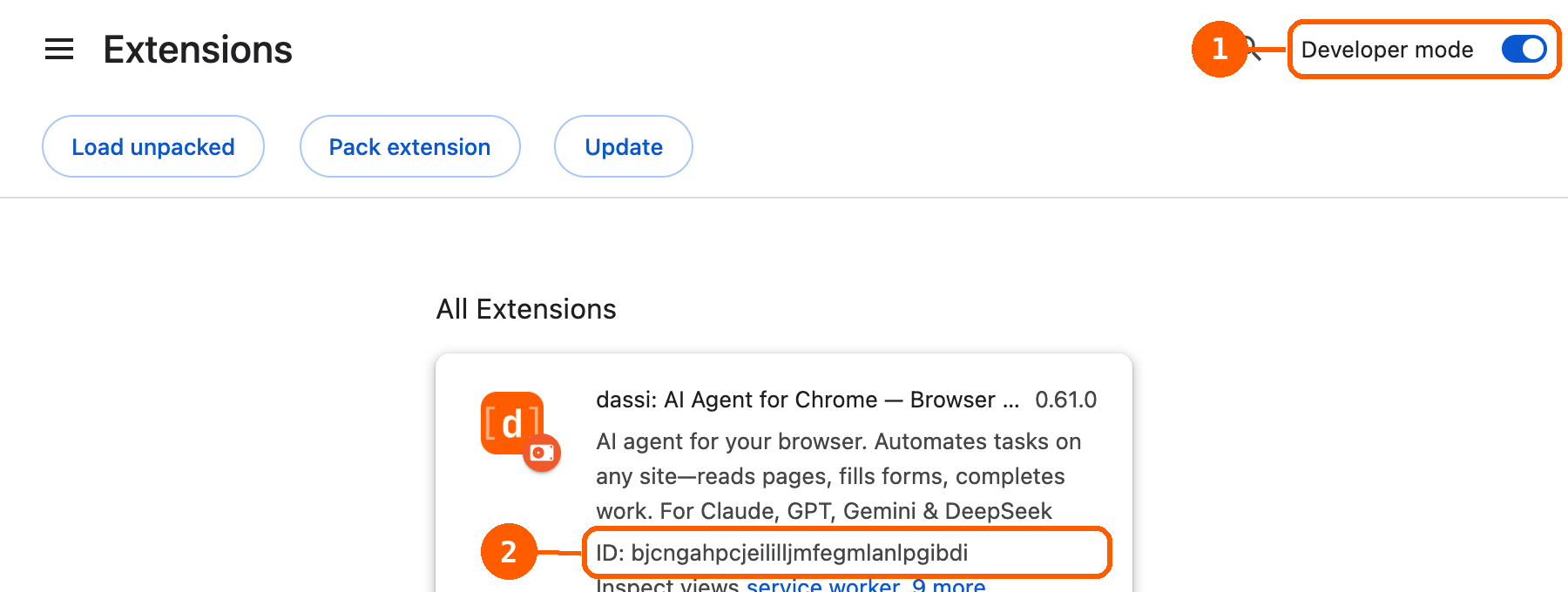
- Open
chrome://extensionsand switch Developer mode on, top right. - The ID now appears under Dassi’s description. Copy it.
You can leave Developer mode on or turn it back off afterwards — the ID doesn’t change either way.
Without turning on Developer mode
Section titled “Without turning on Developer mode”Click Details on the Dassi card instead. The address bar becomes:
chrome://extensions/?id=bjcngahpcjeililljmfegmlanlpgibdiEverything after ?id= is the extension ID.
Which ID you’ll see
Section titled “Which ID you’ll see”Dassi pins its ID in the extension manifest, so the Chrome Web Store build and a manually loaded copy both report bjcngahpcjeililljmfegmlanlpgibdi. Check your own anyway rather than pasting from here — a fork or a locally built copy without that pinned key gets a different ID, and OLLAMA_ORIGINS has to match exactly or Ollama will reject the request.
Your server is ready. Now point Dassi at it — the setting is on the Models page, under API keys.