Voice dictation
Use your voice to write a message in Dassi or give the Telegram bot a task.
| Where you speak | What happens |
|---|---|
| Dassi sidebar | The transcript is added to your draft. Review it, then click Send. |
| Telegram bot | Your voice note becomes a task. Dassi runs it and replies in Telegram. |
You need to be signed in to Dassi. Your extension must include Models → Voice and the Record voice microphone button. If those controls are missing, this feature is not available in your installed version yet.
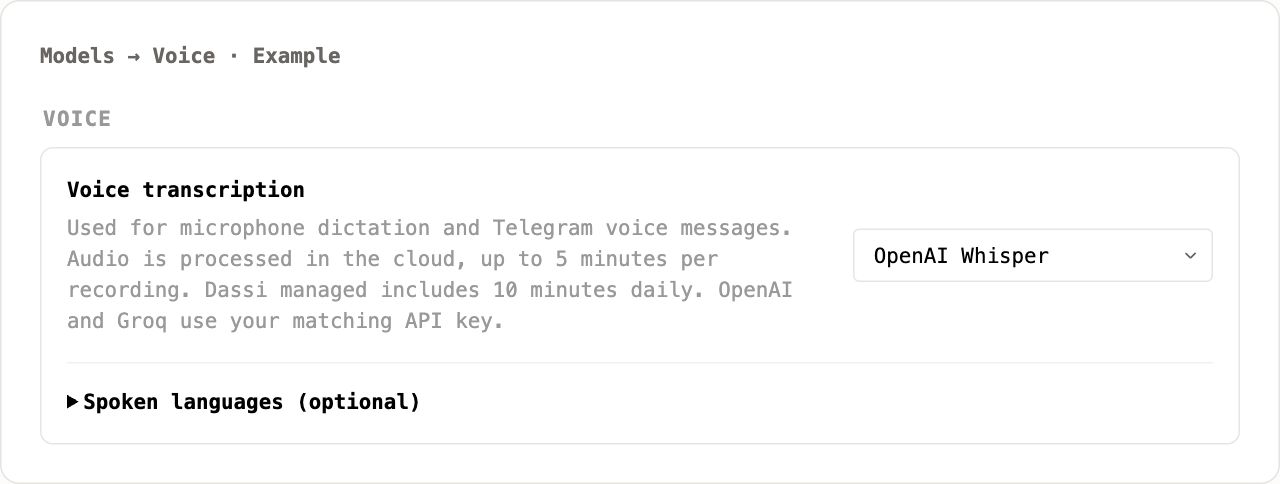
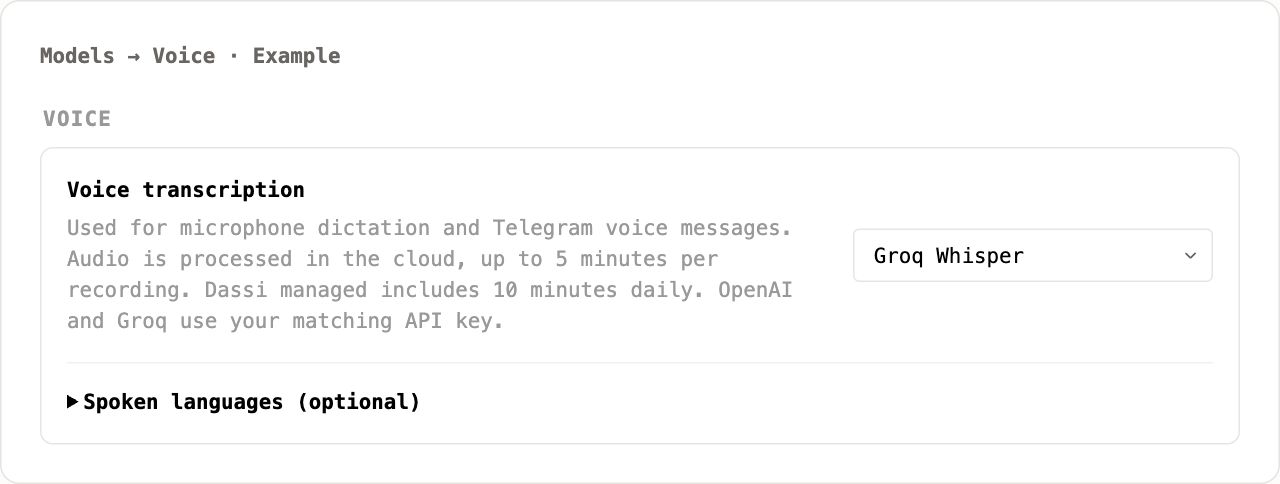
Images marked Example are isolated previews of the voice controls with sample data. They illustrate what to select and what each recording state looks like.
Start with Dassi managed
Section titled “Start with Dassi managed”-
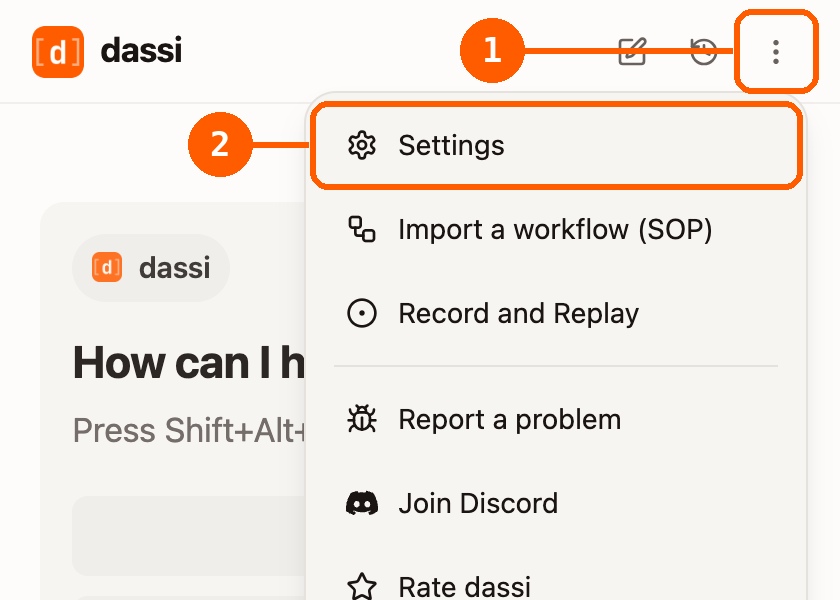
In the sidebar, open ⋮ → Settings.
-
Select Models, then find Voice.
-
Set Voice transcription to Dassi managed (default).
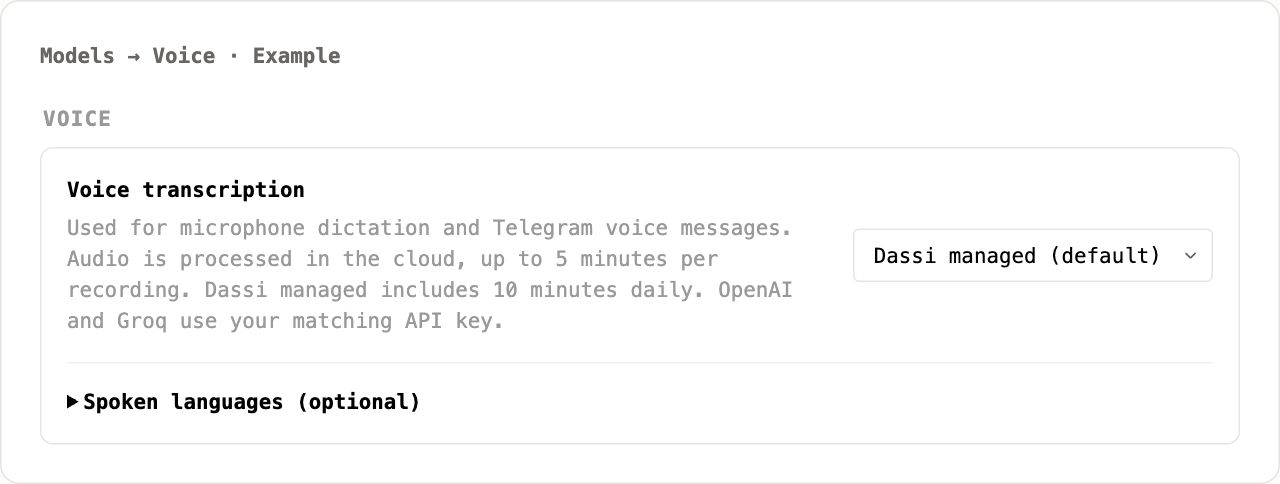
No speech API key is needed. This also works when you use your own provider for chat. Voice transcription has its own provider setting; changing your chat model does not change it.
Dictate in the sidebar
Section titled “Dictate in the sidebar”-
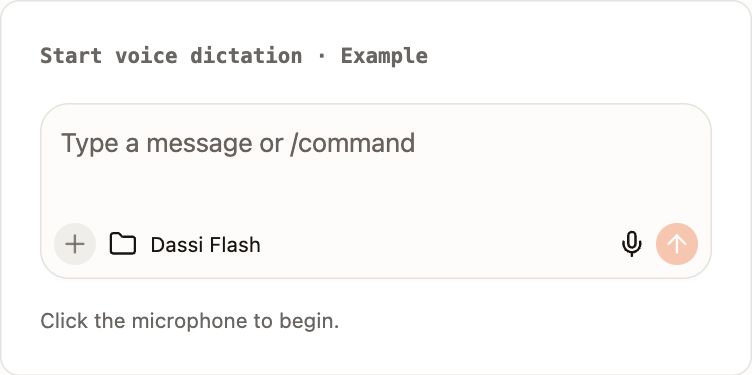
Open a normal Dassi chat and click the microphone button, Record voice.
-
On first use, Dassi opens a microphone setup tab. Click Allow microphone, then Allow in Chrome’s separate permission prompt. If your computer also asks, allow Chrome to use the microphone.
-
Return to the sidebar and click Record voice again. The setup tab only grants permission; it does not start your dictation.
-
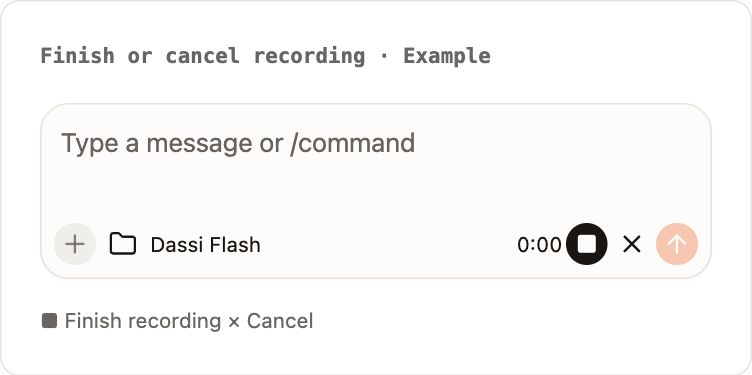
Speak, then click the square Finish recording button.
-
Wait for the transcript to appear beside any existing draft text. Edit it if needed, then click Send or press Enter.
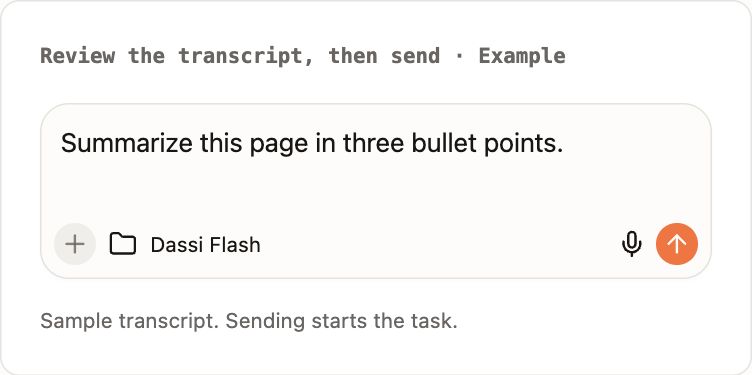
For example, say: “Summarize this page in three bullet points.” Finishing the recording adds that text to the composer; sending it starts the task.
Click Cancel dictation to discard the recording. Keep the recording panel visible: closing or hiding it cancels capture, including a recording that is still starting. Once you have finished recording, transcription can complete while you switch away.
Use the browser shortcut
Section titled “Use the browser shortcut”While Chrome is focused:
| Platform | Start or finish recording |
|---|---|
| Mac | Command+Shift+Space (⌘⇧Space) |
| Windows / Linux | Ctrl+Shift+Space |
Press once to open Dassi for the active tab and start recording. Press again to finish and add the transcript to the Dassi draft. You do not need to hold the keys. The shortcut writes into Dassi, not a text field on the webpage.
Complete microphone permission setup before using the shortcut. A second press during startup cancels it; presses while Transcribing… is shown do nothing.
Send a Telegram voice message
Section titled “Send a Telegram voice message”-
Connect Telegram from Settings → Remote in the Chrome profile you want Dassi to use.
-
In that same profile, choose your provider under Models → Voice.
-
Keep the computer awake and online, with Chrome running and Dassi signed in.
-
Open @dassi_ai_bot from your linked Telegram account and send a voice note. Try: “Please reply with hello.”
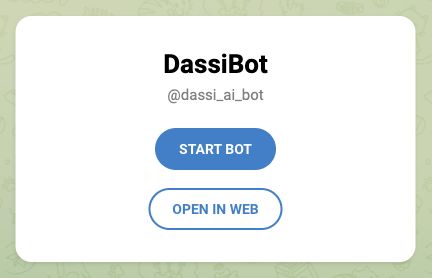
The link opens this bot page in a browser. Choose Start Bot to open Telegram, or Open in Web to use Telegram Web. Send the voice note from the bot conversation after connecting your account.
-
Dassi transcribes the note, runs it as a task, and replies in the same Telegram chat.
A Telegram voice note starts the task as soon as it is processed; there is no draft-review step. The bot uses the voice setting in its connected Chrome profile. You do not need to grant Dassi access to your computer’s microphone to send a voice note recorded in Telegram.
The Telegram conversation is read-only in the Dassi side panel. Continue that conversation in Telegram, or open a normal panel chat to dictate into a draft.
Use your own OpenAI or Groq key
Section titled “Use your own OpenAI or Groq key”To use your own speech provider:
-
Open Settings → Models and expand API keys.
-
Connect OpenAI or Groq with a valid API key. The provider account needs access to its speech model and available quota or billing.
-
Under Voice, choose OpenAI Whisper or Groq Whisper to match that key.
With an OpenAI speech key:
With a Groq speech key:
-
Record a short sentence to check the setup.
This choice applies to both sidebar dictation and Telegram voice messages. A chat subscription, an account sign-in, or a key for a different provider does not supply the OpenAI or Groq speech key. Using Ollama for chat also does not make voice transcription local.
If your selected provider rejects a request, Dassi shows the error. It does not switch to Dassi managed automatically. You can select Dassi managed (default) yourself to use the included allowance.
Languages, limits, and audio processing
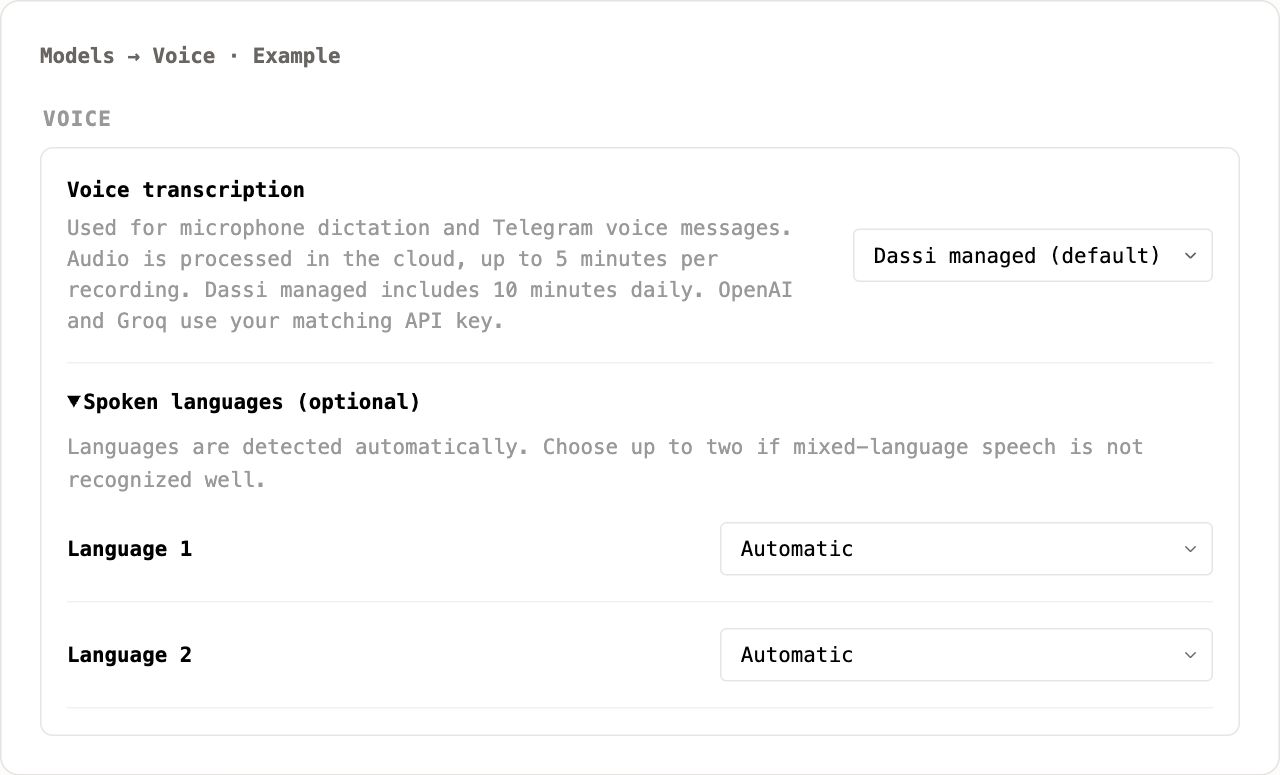
Section titled “Languages, limits, and audio processing”- Languages: detection is automatic. If mixed-language speech is not recognized well, open Models → Voice → Spoken languages (optional) and choose up to two languages.
- Recording length: check Models → Voice for the current maximum. The sidebar stops automatically at that limit; keep Telegram notes within it when using Dassi managed.
- Managed allowance: the daily allowance shown in Models → Voice is shared between sidebar and Telegram for your Dassi account. It resets at midnight UTC and is separate from chat credits. Failed provider requests can still count toward this allowance.
- BYOK usage: your selected speech provider’s limits and charges apply.
- Audio: transcription is processed in the cloud by the selected service. Review sidebar transcripts before sending them, especially names, numbers, and mixed-language text.
Expand Spoken languages (optional) to see both language selectors. Leave them on Automatic unless you want to provide language hints.
Troubleshooting
Section titled “Troubleshooting”| Problem | What to try |
|---|---|
| Microphone setup keeps waiting | Look for Chrome’s separate permission prompt. Use Open microphone settings on the setup tab if it is blocked, and check your computer’s microphone permission for Chrome. Return to Dassi and start a new recording. |
| Shortcut does nothing | Open chrome://extensions/shortcuts and check Dassi’s Start or stop voice dictation in Dassi command. Assign an available shortcut if another app uses it. |
| Mac shows the emoji picker | Use Command+Shift+Space. Control+Command+Space opens the macOS emoji picker. |
| Recording disappears after switching tabs | Hiding the recording panel cancels it. Return and start a fresh recording, keeping the panel visible until you finish. |
| “No speech” or a recording error | Check the selected microphone and record a shorter, audible sentence. Check your internet connection, then retry. |
| Daily voice allowance is exhausted | Wait for midnight UTC, or configure your own OpenAI/Groq speech key and select it under Voice. |
| BYOK key or provider error | Check that Voice matches the saved API key and that the provider has speech access and available quota. |
| Telegram does not reply | Check that the linked Chrome profile is running, signed in, and online. Check Settings → Remote for the connection and Models → Voice for the provider. |